Online Image Color Adjustment Tools
BrushCue offers a full suite of free color adjustment tools to fix brightness, contrast, saturation, white balance, and more — all in your browser.
Brightness & Exposure
These tools control the overall luminance of your image.
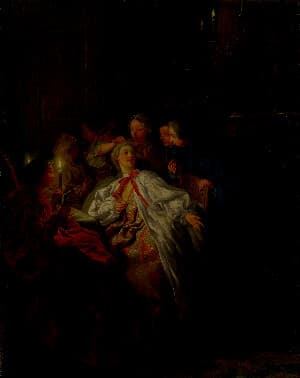
Brightness Adjust
Adjust image brightness online with live preview. Lighten or darken photos instantly using this free browser-based brightness adjustment tool.
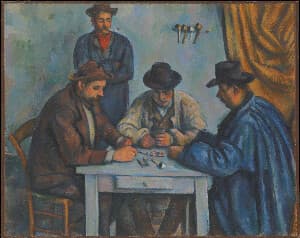
Shadows & Highlights
Brighten dark areas or soften bright areas without changing the whole photo equally. Adjust shadows and highlights independently, then blend the correction with the strength slider. Edit privately in your browser.
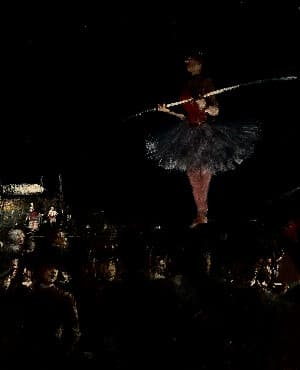
Brightness Contrast Adjust
This tool allows you to increase the contrast of the brightness of an image. This leads to more stark contrast between the dark and light areas of your image while leaving the colors unaffected.
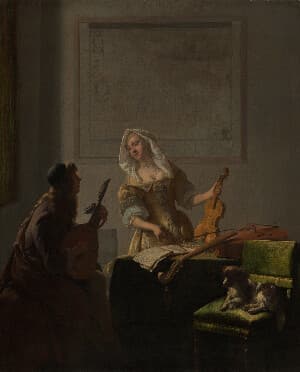
Contrast Adjust
Use this tool to increase or decrease the contrast in your images. Values greater than 0 increase the contrast. Values less than 0 decrease the contrast.
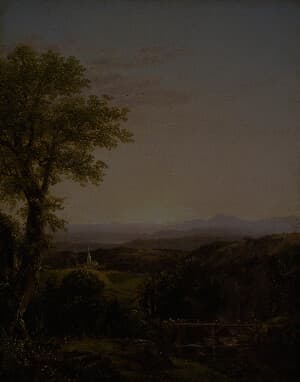
Exposure Adjust
Adjust the exposure of your image using exposure steps. Mimics the effect of increasing or decreasing the exposure when taking a photo.
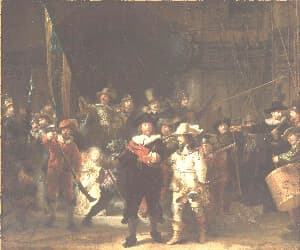
Lighten
An image brightness adjustment tool with a user-controlled slider, perfect for correcting underexposed or overexposed photos, enhancing mood, and bringing out detail in shadows or highlights.
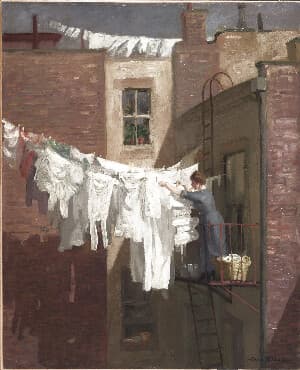
Whiten Image
Make the whites in your photo whiter. Whiten Image pushes bright areas toward pure white and removes yellow or gray casts, without blowing out shadows and midtones. Great for documents, product photos, clothing and white backgrounds. Control the effect with a single strength slider.
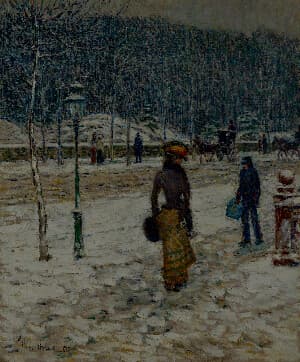
Darken
A darkness adjustment tool with a user-controlled slider, designed to deepen shadows and reduce overall luminance for a richer, more dramatic look. Ideal for toning down overexposed areas, enhancing contrast, setting mood, and subtly obscuring details to create depth and atmosphere.
Saturation & Vibrancy
These tools control color intensity without changing hue or luminance.
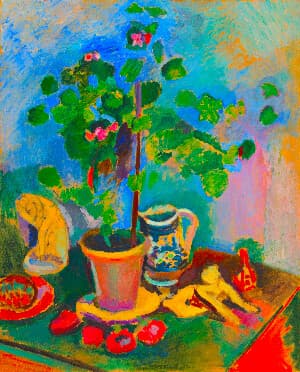
Saturation Adjust
Increase or decrease image saturation online. Perfect for vivid enhancements or muted artistic looks.
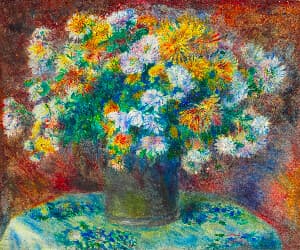
Vibrancy
The Vibrancy Effect tool adaptively boosts color saturation while preserving natural-looking tones. Unlike traditional saturation adjustments that uniformly increase chroma across all colors, vibrancy intelligently applies stronger boosts to less saturated colors and milder adjustments to already vivid colors, resulting in more balanced and visually appealing results.
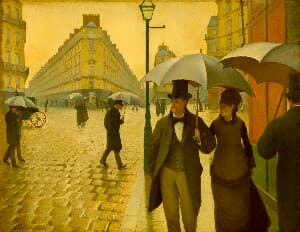
Chroma Offset
Applies a uniform chroma shift in the OkLab color space to adjust color intensity without changing hue or luminance. This produces perceptually consistent saturation changes, avoiding the artifacts common in RGB or HSV-based adjustments.
White Balance & Temperature
These tools shift the color temperature of your image warmer or cooler.
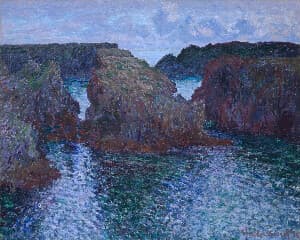
Warmth Adjust
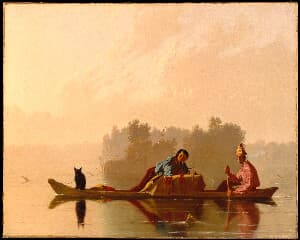
Warmth adjusts the color temperature of your image to make it feel cooler or warmer by simulating different lighting conditions. Slide right for golden, cozy tones and left for cooler, crisper tones—while keeping neutrals and skin tones balanced.
Kelvin Tuner
Adjust the color temperature of your image by setting a specific white point in Kelvin. Perfect for correcting color casts from different lighting conditions or creating a warmer/cooler aesthetic. D50 is our default, you can adjust from there.
Color Grading
These tools apply targeted, single-purpose color shifts like tints, channel mixing, and duotone remapping for precise corrective or creative control.
Shadow Tint
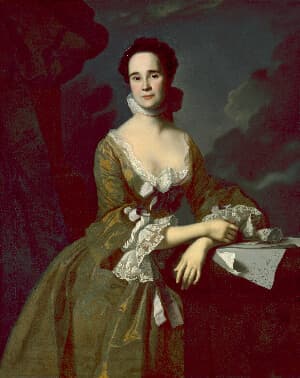
This tool applies a selective chroma shift to shadow areas of an image, allowing you to add color offset (shifts in red and blue channels) specifically to the darker regions. Use it to create stylized color grading effects or enhance shadow details with custom color adjustments while preserving the highlights and midtones.
Adjust Channels
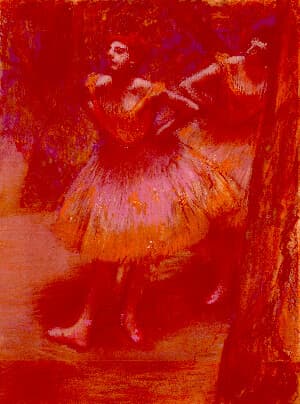
Add or subtract from the red, green, and blue channels independently to shift the image’s color balance.
Duotone Effect
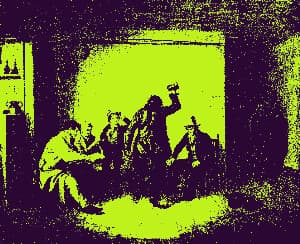
Map image shadows and highlights to two custom colors with contrast-boosted lightness curves for rich, professional color grading.
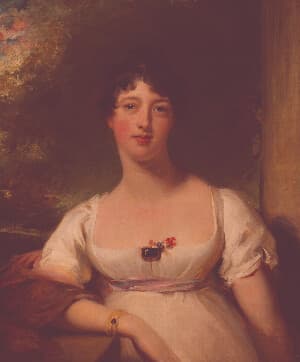
Rose Tint
Apply a rose tinted effect to your images. Great for expressions of love or to celebrate Valentine’s Day.
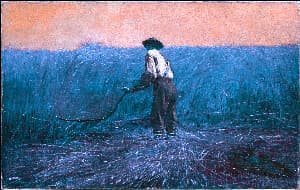
Hue Adjust
Rotate the hues of your image with a single slider. Shift colors around the color wheel in degrees while keeping brightness and saturation intact, using a perceptual OkLab color rotation.
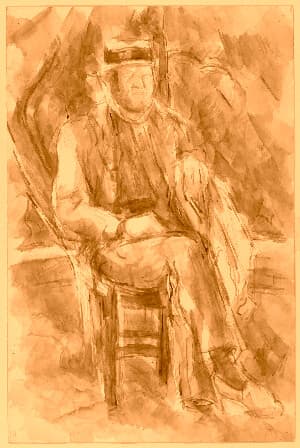
Tint Toward Color
Pull your image's colors toward any color you pick. Choose the tint color and dial the strength to shift hues in perceptual OkLab space while keeping lightness and detail intact.
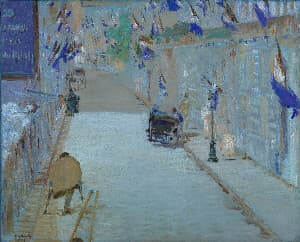
Channel Mixer
Remix the red, green, and blue channels with a full 3x3 matrix plus offsets. Swap channels, build custom black-and-white mixes, or dial in cross-processed color science.
Color Space
These tools convert your image to a specific color profile.
Convert to sRGB
This tool takes an image that you have and converts it to sRGB. It does it by using the ICC sRGB color profile and changing the colors of your image accordingly.
Convert to Display P3
Takes your image and converts the colors to work for Display P3, and embeds a Display P3 ICC profile into your output image.
Convert to BT.709
Takes the image that you supply and modifies the colors to fit BT.709. Does this by using the ICC profiles. This tool will embed an ICC profile into the output.
Color Analysis
These tools measure and report the colors in your image.
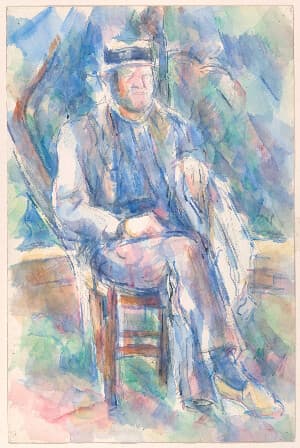
Dominant Color
Find the single most representative color of any image. Upload a photo to extract its dominant color as a swatch with sRGB, hex, P3, OKLab, and XYZ values.
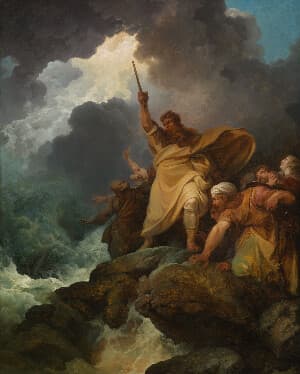
Image to Palette
Turn any image into a color palette. Upload a photo, choose how many colors to extract, and get each color as a swatch with sRGB, hex, P3, OKLab, and XYZ values.
Image Color Profile
Upload an image to inspect its embedded color profile. See the profile name and download the original ICC profile when one is present.