Online Photo Enhancement Tools
Improve brightness, contrast, color, sharpness, and detail in photos with BrushCue's browser-based enhancement tools.
Light & Tone
These tools adjust brightness, contrast, exposure, and overall luminance.

Brightness Adjust
Adjust image brightness online with live preview. Lighten or darken photos instantly using this free browser-based brightness adjustment tool.

Brightness Contrast Adjust
This tool allows you to increase the contrast of the brightness of an image. This leads to more stark contrast between the dark and light areas of your image while leaving the colors unaffected.

Contrast Adjust
Use this tool to increase or decrease the contrast in your images. Values greater than 0 increase the contrast. Values less than 0 decrease the contrast.

Exposure Adjust
Adjust the exposure of your image using exposure steps. Mimics the effect of increasing or decreasing the exposure when taking a photo.

Lighten
An image brightness adjustment tool with a user-controlled slider, perfect for correcting underexposed or overexposed photos, enhancing mood, and bringing out detail in shadows or highlights.

Whiten Image
Make the whites in your photo whiter. Whiten Image pushes bright areas toward pure white and removes yellow or gray casts, without blowing out shadows and midtones. Great for documents, product photos, clothing and white backgrounds. Control the effect with a single strength slider.
Darken
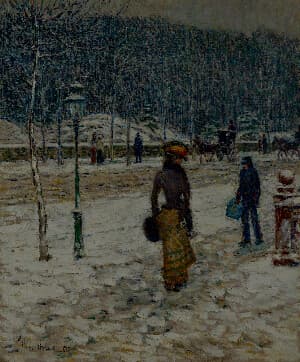
A darkness adjustment tool with a user-controlled slider, designed to deepen shadows and reduce overall luminance for a richer, more dramatic look. Ideal for toning down overexposed areas, enhancing contrast, setting mood, and subtly obscuring details to create depth and atmosphere.
Auto Contrast
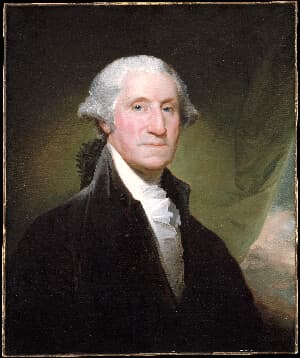
Automatically stretch your image's tones to fill the full black-to-white range. Uses robust histogram percentiles so a few outlier pixels can't skew the result, while keeping hues intact.
Gamma Adjust
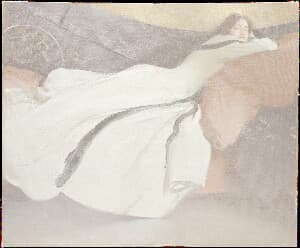
Adjust the gamma of your image with a single slider. Values below 1 brighten midtones while values above 1 darken them, leaving pure black and white fixed.
Color Enhancement
These tools improve color intensity and color temperature.
Saturation Adjust
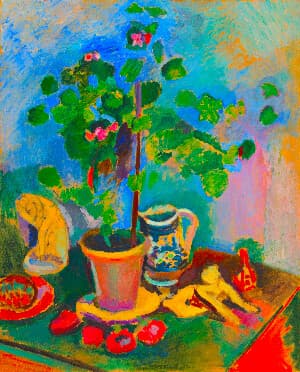
Increase or decrease image saturation online. Perfect for vivid enhancements or muted artistic looks.
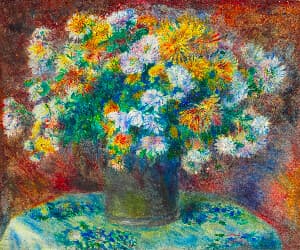
Vibrancy
The Vibrancy Effect tool adaptively boosts color saturation while preserving natural-looking tones. Unlike traditional saturation adjustments that uniformly increase chroma across all colors, vibrancy intelligently applies stronger boosts to less saturated colors and milder adjustments to already vivid colors, resulting in more balanced and visually appealing results.
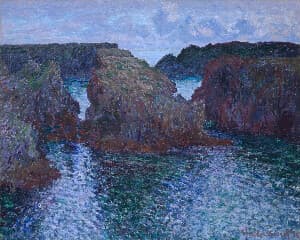
Warmth Adjust
Warmth adjusts the color temperature of your image to make it feel cooler or warmer by simulating different lighting conditions. Slide right for golden, cozy tones and left for cooler, crisper tones—while keeping neutrals and skin tones balanced.
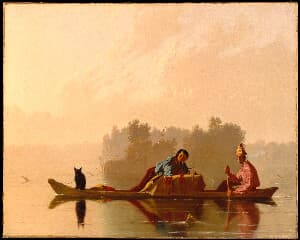
Kelvin Tuner
Adjust the color temperature of your image by setting a specific white point in Kelvin. Perfect for correcting color casts from different lighting conditions or creating a warmer/cooler aesthetic. D50 is our default, you can adjust from there.
Detail & Cleanup
These tools sharpen detail, reduce noise, or add glow to an image.
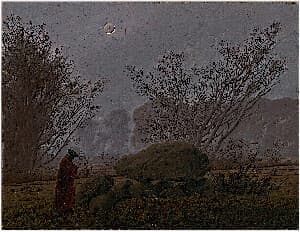
Sharpen
Sharpen your images instantly with this browser-based sharpening tool. Enhance edges, boost clarity, and bring out fine details to make photos look crisp and focused. Adjust the strength to control how subtle or intense the sharpening effect appears, whether you’re refining portraits, improving product shots, or restoring slightly soft images—all without leaving your browser.
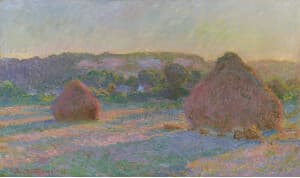
Median Filter
Runs a median filter over the composition. This will accumulate the R, G and B components of your image and then calculate the median of each component. Valid range for the kernel size is between 1 and 5. Use this tool to remove noise from an image.
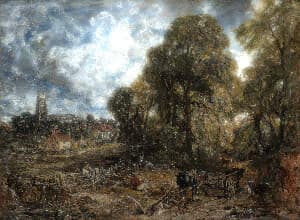
Bloom
Apply a bloom effect to your image. This effect isolates the lighter parts of the image, blurs them, and adds them back into the image to make your image bloom.