Emboss Image Online
Click to get startedDrop your image here
tap to choose a fileor click to browse
What you can expect
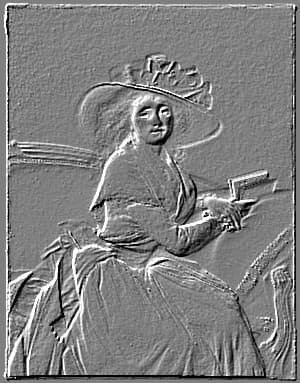
Turn any photo into a raised relief with this browser-based emboss effect. Choose the light angle, set the amount and depth of the relief, and flip it to deboss for a pressed-in look. Keep the classic gray stone look or turn off grayscale to preserve color hints. Great for textures, stamps, metal and paper effects.
Related tools
More BrushCue tools that fit this workflow.
Sobel Edge Detection
Interactive, browser-based Sobel edge detection demo for research and experimentation. Upload images to visualize gradient-based edge detection in real time—ideal for learning, prototyping, and exploring computer vision concepts directly in the browser.
Sharpen
Sharpen your images instantly with this browser-based sharpening tool. Enhance edges, boost clarity, and bring out fine details to make photos look crisp and focused. Adjust the strength to control how subtle or intense the sharpening effect appears, whether you’re refining portraits, improving product shots, or restoring slightly soft images—all without leaving your browser.
Included in collections
Browse by category
Online Scientific Image Processing Tools
→Frequently asked questions
- How do I emboss an image online?
- Upload your image, pick a light angle and amount, then export. Edges become a raised relief on a mid-gray background.
- What is the difference between emboss and deboss?
- Emboss makes edges look raised toward the light. Deboss inverts the relief so the same edges look pressed into the surface.
- What does the light angle do?
- It sets the direction the light comes from, in degrees. 0° lights from the right, 90° from the top and 135° from the top-left.
- Why does my embossed image look faint?
- Large photos have soft edges at the pixel level. Raise the amount or the distance to deepen the relief.
- Can I keep the colors when embossing?
- Yes. Turn off grayscale to emboss each color channel, leaving subtle color fringes along the edges.
- What file formats can I export?
- You can export as PNG, JPEG, WebP, TIFF, BMP, or HEIC.
- Is this tool free to use?
- Yes — completely free, no account needed. Your images are processed entirely in your browser and never uploaded to a server. Downloads have no watermarks.
For developers
Use Emboss from Python
Open the Jupyter notebook example to see how to run this tool from the BrushCue Python API, inspect the processing steps, and adapt the workflow for scripts or batch image jobs.
View Python notebookBuild your own
Create projects with your custom presets
Save work, organize projects, and keep your favorite tool setups ready to go. No login required — everything is stored privately on your computer.
Go to projects