Drawing
Draw freehand on your images with adjustable brushes, directly in your browser.
Drawing Tools
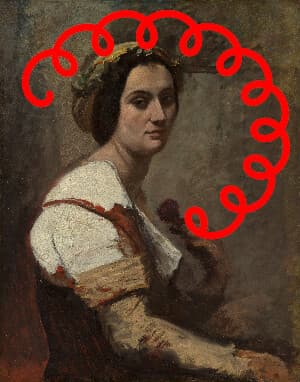
Draw on Image
Draw freehand on your photo with a solid red brush. Upload an image, add your marks, and export at the original image size.
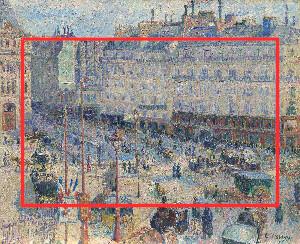
Draw Rectangle on Image
Add a rectangle or box to any image online to highlight, frame, or cover an area. Set the color, outline width, size, position, and rotation, or fill it solid.
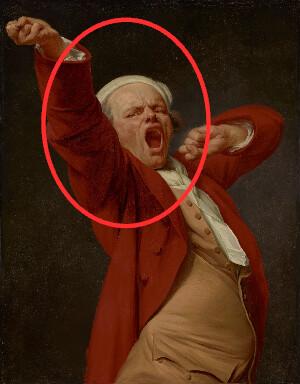
Draw Circle on Image
Circle something in a photo or screenshot online. Draw an outlined or filled circle or ellipse, then set its color, line width, size, position, and rotation.
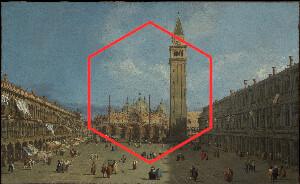
Draw Polygon on Image
Draw a triangle, pentagon, hexagon, or any regular polygon with 3 to 12 sides on an image online. Choose outline or fill, color, size, position, and rotation.
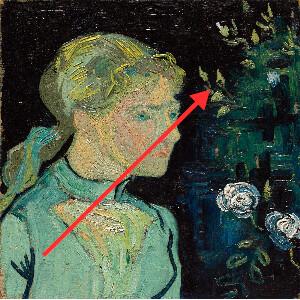
Draw Arrow on Image
Add an arrow or straight line to an image online to point something out. Set the start and end points, color, and line width, and turn the arrowhead on or off.
Censor & Redact
Paint over faces, text, or private details to pixelate, blur, or black them out.
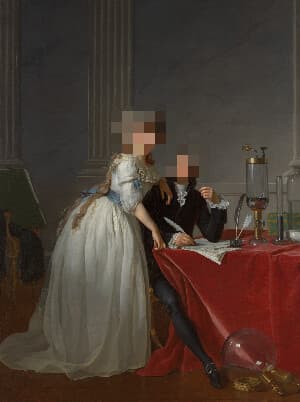
Censor Image with Pixelate
Paint over faces, text, or anything private to pixelate just those areas. Adjust the pixel size and export at the original image size, privately in your browser.
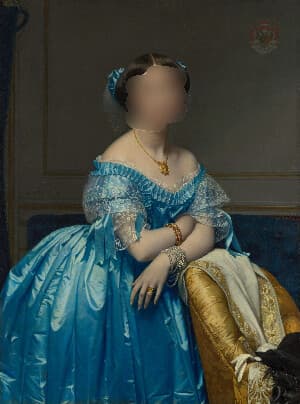
Censor Image with Blur
Paint over faces, text, or anything private to blur just those areas. Adjust the blur strength and export at the original image size, privately in your browser.
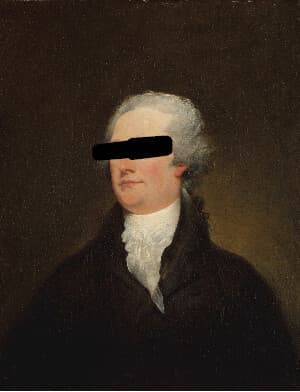
Censor Image with Black Bar
Paint solid black over names, text, or anything private to redact it. Export at the original image size, privately in your browser.
Retouch Brushes
Paint over just the areas you want to lighten, darken, saturate, sharpen, clone, or erase.
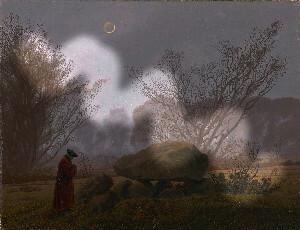
Dodge Tool
Lighten just the parts of a photo you paint over, like the darkroom dodge tool. Brush over shadows, faces, or eyes, then adjust how much to brighten and how soft the edges are.
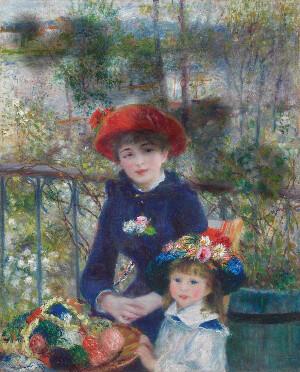
Burn Tool
Darken just the parts of a photo you paint over, like the darkroom burn tool. Brush over bright skies, hot spots, or distracting areas, then set the darkening amount and edge softness.
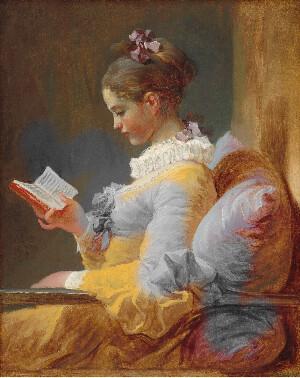
Sponge Tool
Fade or boost color in just the parts of a photo you paint over. By default the sponge mutes color toward gray; set Saturation above 1 to make colors pop instead.
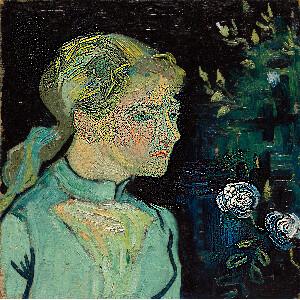
Sharpen Part of Image
Sharpen only the areas you paint, like eyes, text, or product details, while leaving skin, sky, and backgrounds smooth. Adjust radius, strength, and edge softness.
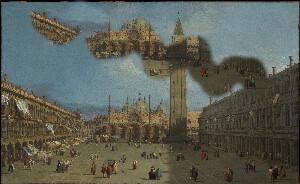
Clone Stamp
Copy pixels from one part of a photo onto another by painting. Set the source offset, then brush over blemishes, objects, or gaps to cover them with nearby texture.
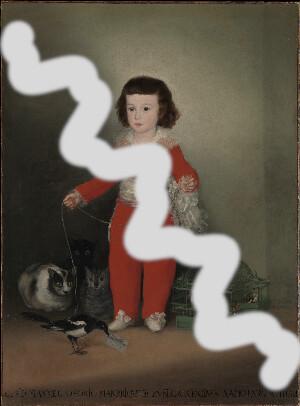
Erase Part of Image
Erase any part of an image to transparency by painting over it. Use Edge Softness for feathered edges, then export as PNG to keep the transparent areas.