Draw a Circle or Ellipse on an Image Online
Click to get startedDrop your image here
tap to choose a fileor click to browse
What you can expect
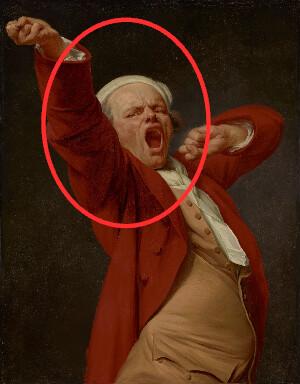
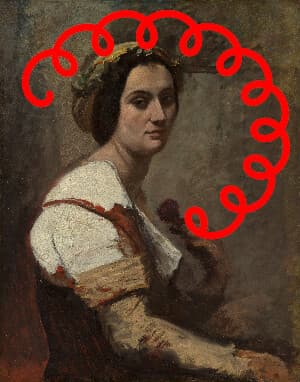
Circle something in a photo or screenshot online. Draw an outlined or filled circle or ellipse, then set its color, line width, size, position, and rotation.
Related tools
More BrushCue tools that fit this workflow.
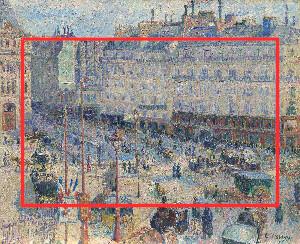
Draw Rectangle on Image
Add a rectangle or box to any image online to highlight, frame, or cover an area. Set the color, outline width, size, position, and rotation, or fill it solid.
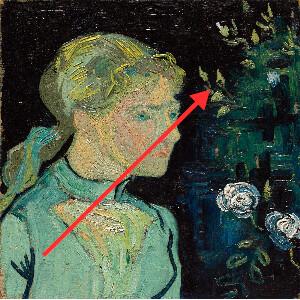
Draw Arrow on Image
Add an arrow or straight line to an image online to point something out. Set the start and end points, color, and line width, and turn the arrowhead on or off.
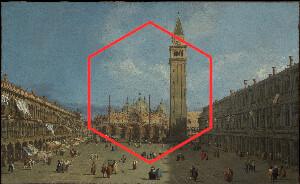
Included in collections
Browse by category
Drawing
→Related posts
Read more about Draw Circle on Image
Frequently asked questions
- How do I circle something in a picture?
- Upload your image, then use Center X/Y and Width/Height to place the circle over what you want to point out.
- Can I draw an oval instead of a circle?
- Yes. Set different Width and Height values, and use Rotation to tilt the ellipse.
- What color should I use to highlight?
- Red is the most common. Pick any color with the Color control, and raise Line Width so it stands out.
- What file formats can I export?
- You can export as PNG, JPEG, WebP, TIFF, BMP, or HEIC.
- Is this tool free to use?
- Yes — completely free, no account needed. Your images are processed entirely in your browser and never uploaded to a server. Downloads have no watermarks.
Build your own
Create projects with your custom presets
Save work, organize projects, and keep your favorite tool setups ready to go. No login required — everything is stored privately on your computer.
Go to projects