Clone Stamp Tool Online
Click to get startedDrop your image here
tap to choose a fileor click to browse
What you can expect
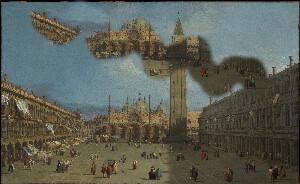
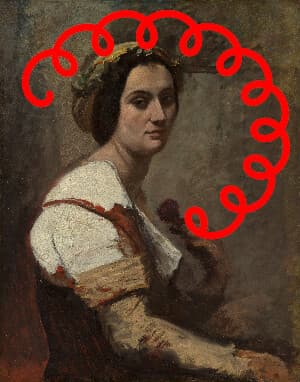
Copy pixels from one part of a photo onto another by painting. Set the source offset, then brush over blemishes, objects, or gaps to cover them with nearby texture.
Related tools
More BrushCue tools that fit this workflow.
Erase Part of Image
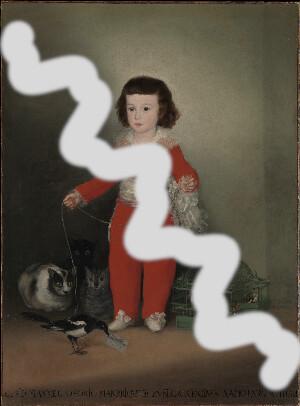
Erase any part of an image to transparency by painting over it. Use Edge Softness for feathered edges, then export as PNG to keep the transparent areas.
Censor Image with Blur
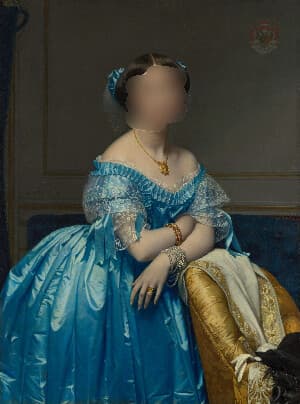
Paint over faces, text, or anything private to blur just those areas. Adjust the blur strength and export at the original image size, privately in your browser.

Included in collections
Browse by category
Drawing
→Related posts
Read more about Clone Stamp
Frequently asked questions
- How does the clone stamp work?
- Wherever you paint, it shows the image from a fixed offset away, so nearby texture covers what's underneath.
- How do I choose the source?
- Use Source Offset X and Y to set how far, as a fraction of the image size, the copied pixels come from.
- How do I remove a small object?
- Set the offset to a clean area next to the object, such as plain sky or grass, then paint over the object.
- What file formats can I export?
- You can export as PNG, JPEG, WebP, TIFF, BMP, or HEIC.
- Is this tool free to use?
- Yes — completely free, no account needed. Your images are processed entirely in your browser and never uploaded to a server. Downloads have no watermarks.
Build your own
Create projects with your custom presets
Save work, organize projects, and keep your favorite tool setups ready to go. No login required — everything is stored privately on your computer.
Go to projects