Pixelate Faces Online
Click to get startedDrop your image here
tap to choose a fileor click to browse
What you can expect
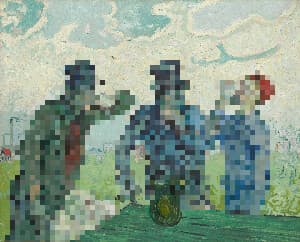
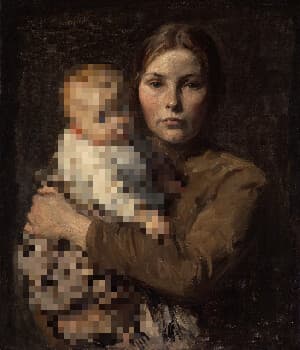
Pixelate faces in your images using this tool. Our AI automatically detects every face in your photo and applies a pixelation effect to hide it. To use, select your image and adjust the pixel size and how far the pixelation extends past each face.
Related tools
More BrushCue tools that fit this workflow.
Blur Faces
Blur faces in your images using this tool. Our AI automatically detects every face in your photo and applies a Gaussian blur to hide it. To use, select your image and adjust the blur strength and how far the blur extends past each face.
Swirl Faces
Swirl faces in your images using this tool. Our AI automatically detects every face in your photo and twists it with a swirl sized to fit that face. To use, select your image, adjust the swirl amount, and expand the swirl past each face if needed.
Included in collections
Browse by category
Online Mosaic Tools
→Online Privacy & Redaction Tools
→Online AI Subject Editing Tools
→Frequently asked questions
- How do I pixelate faces in a photo?
- Upload your image and faces are detected and pixelated automatically. Adjust the pixel size if needed, then export.
- Does it pixelate every face in the image?
- Yes. The AI finds all faces in the photo, including small faces in group shots and crowds, and pixelates each one.
- How do I make the pixelation stronger?
- Raise the pixel size slider. Larger blocks hide facial features more completely.
- What does the expand slider do?
- It grows the pixelated area past the edge of each detected face, so hairlines, ears and outlines are covered too.
- Should I pixelate or blur faces?
- Pixelation gives an obvious censored look with visible blocks. Blur is softer and more natural. Try Blur Faces for a subtler effect.
- What file formats can I export?
- You can export as PNG, JPEG, WebP, TIFF, BMP, or HEIC.
- Is this tool free to use?
- Yes — completely free, no account needed. Your images are processed entirely in your browser and never uploaded to a server. Downloads have no watermarks.
Build your own
Create projects with your custom presets
Save work, organize projects, and keep your favorite tool setups ready to go. No login required — everything is stored privately on your computer.
Go to projects