Extract Green Channel from Image Online
Click to get startedDrop your image here
tap to choose a fileor click to browse
What you can expect
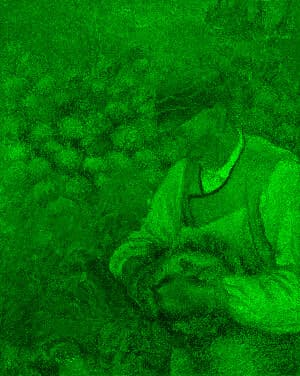
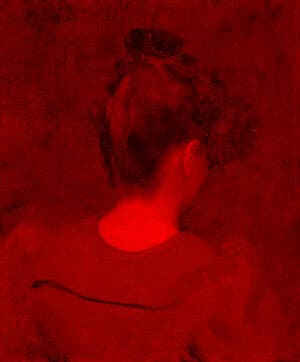
Given the image you provide, selects the green channel and sets the other channels to 0. Use for scientific analysis or an effect.
Related tools
More BrushCue tools that fit this workflow.
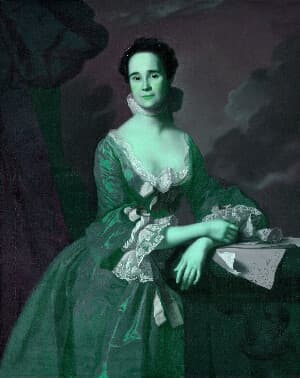
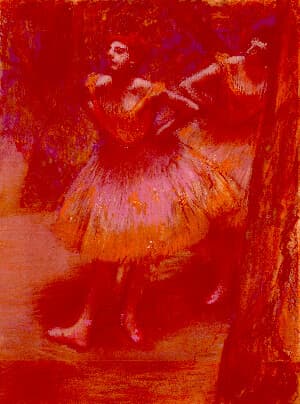
Included in collections
Browse by category
Online Scientific Image Processing Tools
→Frequently asked questions
- How to isolate the green channel of an image?
- Select your file and the green channel is extracted automatically — red and blue channels are set to zero.
- What is the green channel?
- It represents the intensity of green light per pixel. Because human vision is most sensitive to green, it often closely resembles a grayscale image.
- Why would I isolate the green channel?
- For scientific analysis, artistic effects, or comparing how each color channel contributes to your image.
- What file formats can I export?
- You can export as PNG, JPEG, WebP, TIFF, BMP, or HEIC.
- Is this tool free to use?
- Yes — completely free, no account needed. Your images are processed entirely in your browser and never uploaded to a server. Downloads have no watermarks.
For developers
Use Green Channel from Python
Open the Jupyter notebook example to see how to run this tool from the BrushCue Python API, inspect the processing steps, and adapt the workflow for scripts or batch image jobs.
View Python notebookBuild your own
Create projects with your custom presets
Save work, organize projects, and keep your favorite tool setups ready to go. No login required — everything is stored privately on your computer.
Go to projects