What the Halftone Tool Is
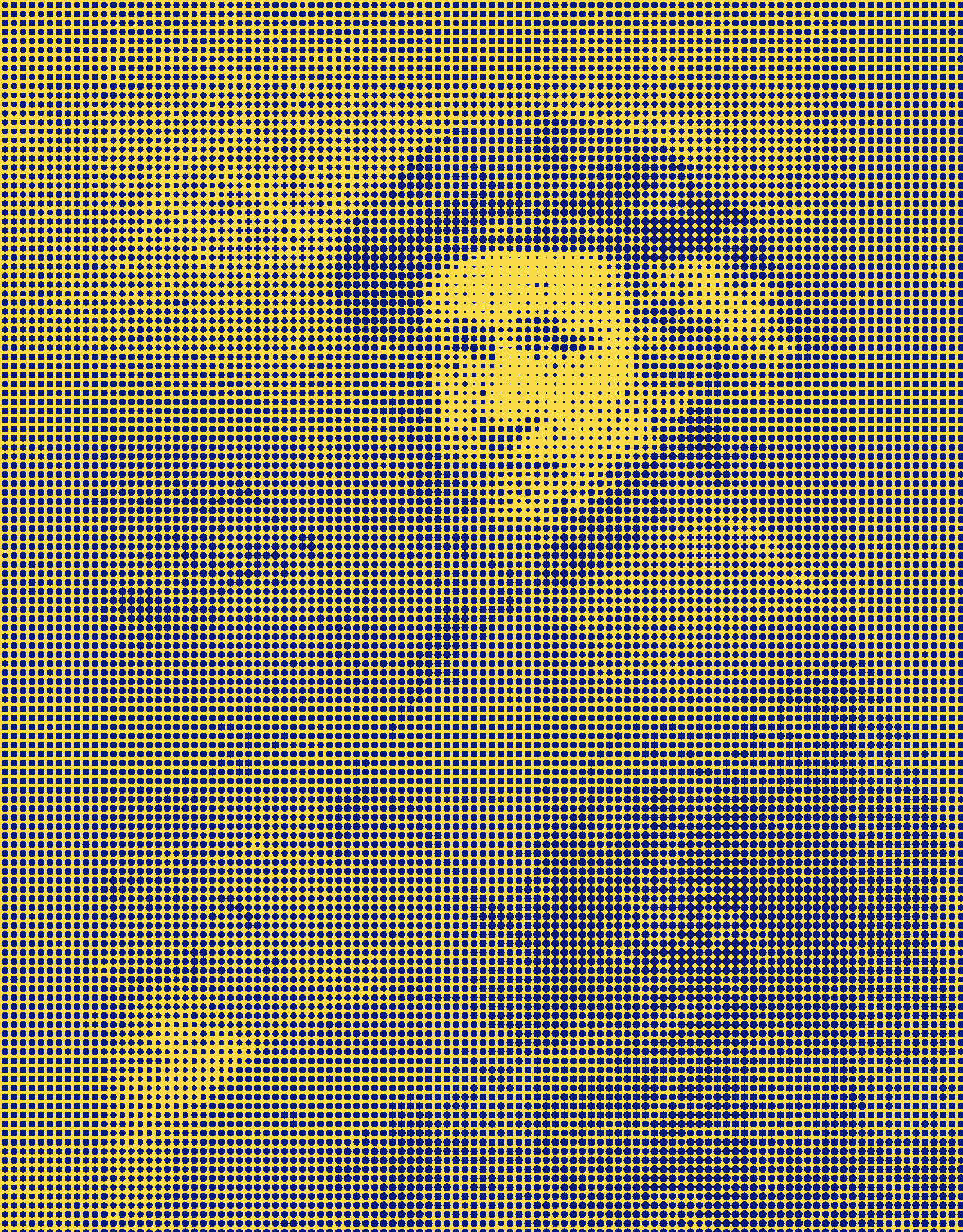
The halftone effect transforms your image into a grid of dots. The diameter of the dot corresponds to the lightness value of the region. The halftone tool is very similar to the pixelate tool. Technically speaking, it is just a variation of that tool which you can read more about in our blog post.
The implementation of a halftone effect is really quite easy. Just three steps:
- We compute the lightness value of each region using OkLab.
- We turn that value into a radius for that dot.
- We draw the circle for each region.
In the rest of this post, we will discuss all of the options of the halftone tool and how you can use them to achieve the result you desire. For the purposes of this post, we will be using Rembrandt's self portrait as the image we will turn to halftone.
| Before | After |
|---|---|
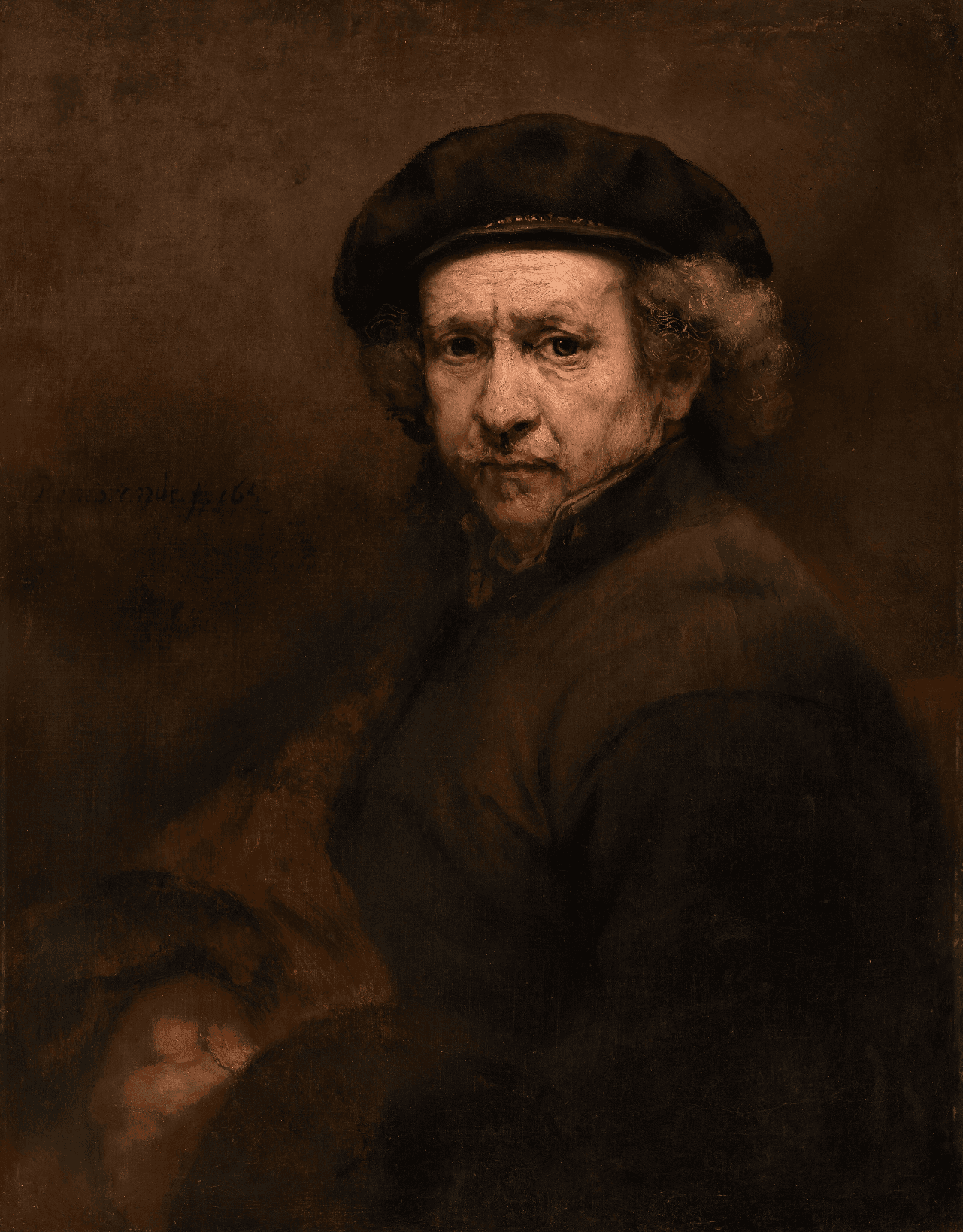 | 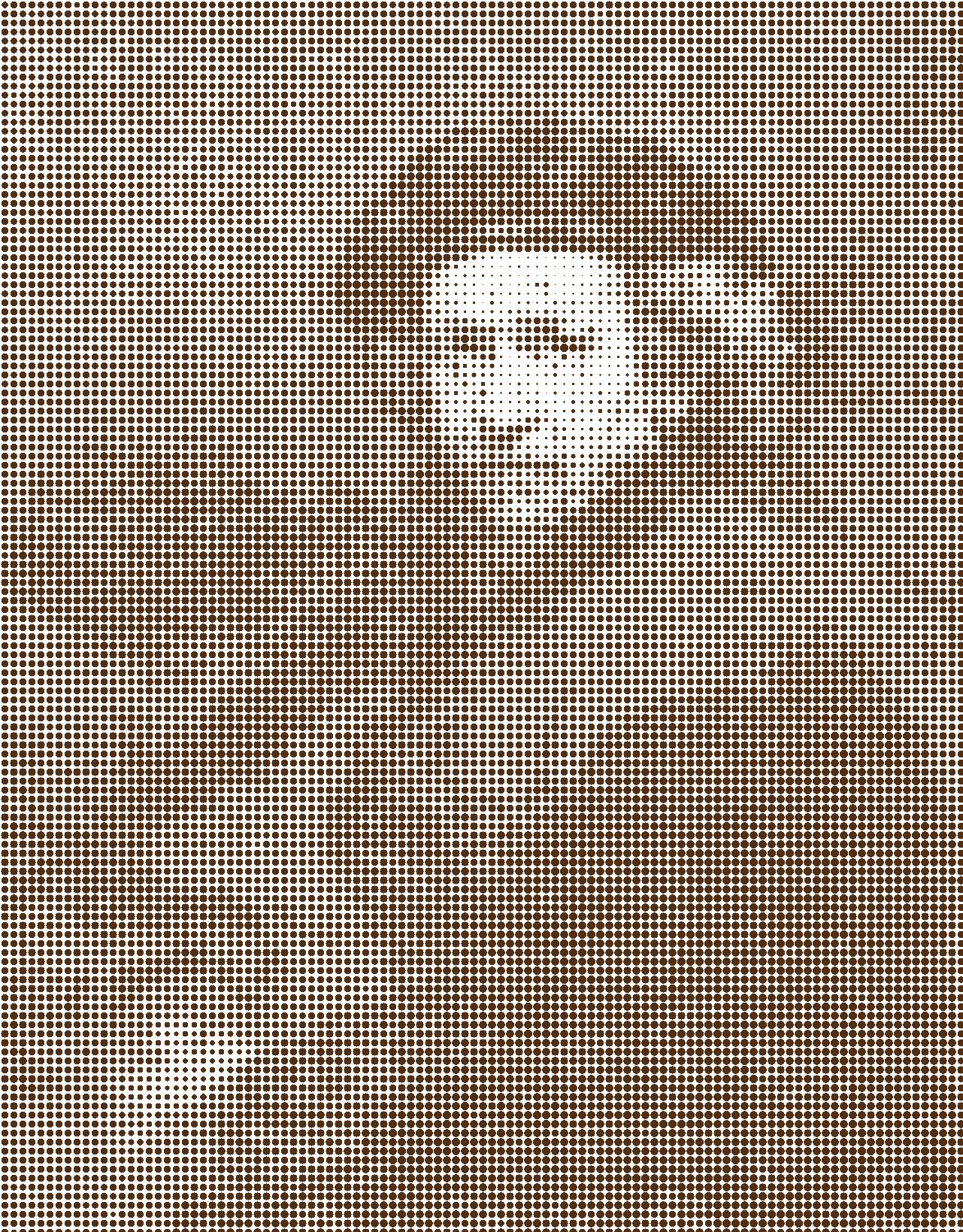 |
The effect I like uses this dark orange color (#582C0A) for the dots and a white background. The region size here is 12 and the contrast adjustment parameter is 2.
Selecting the Region Size
The most important attribute of the halftone tool is the "Region Size". This controls the size of the dots. The region size is in pixels and is therefore dependent on the size of your input image.
For this image, which is 1281x1638, you can use the tool below to see what various region sizes look like.
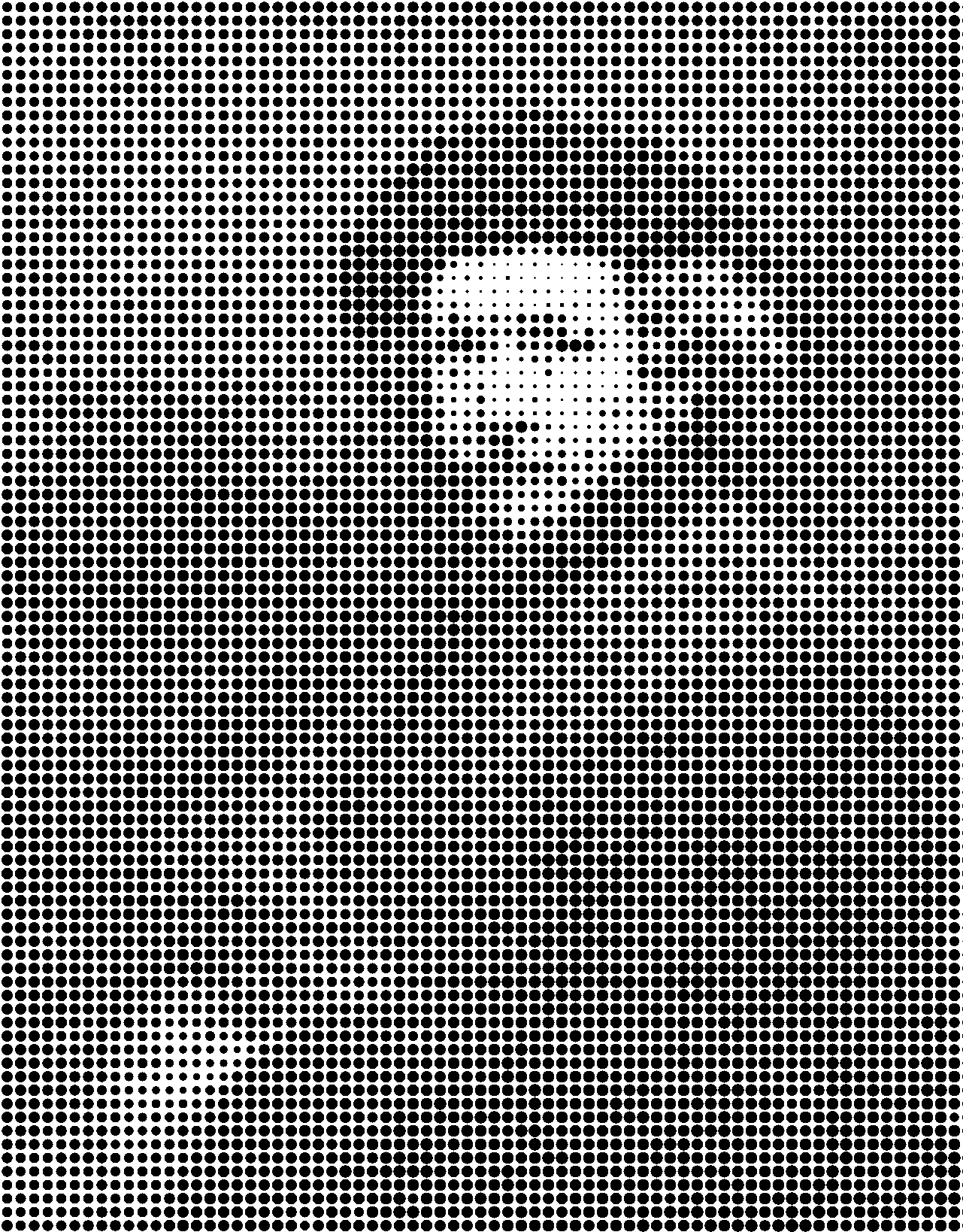
At level 6, you can barely see each of the circles. At level 30, you start to lose what the subject matter actually was. One thing to note: this tool works best on very large images. If the image is large, we can do smaller circles (relatively) that still maintain their shape.
Personally, I prefer the size of 12 for this image. You get the halftone effect but you can still see a lot of the detail.
Selecting the Contrast Parameter
As discussed in our post on high contrast grayscale, increasing the contrast in an image can make a more striking appearance when converting to a single color. The halftone effect we are working on is no different. Consequently, as part of the tool we allow you to set a contrast factor that internally uses a pivoted sigmoid curve to increase contrast.
You can click through the images below to see how different contrast levels impact the output.
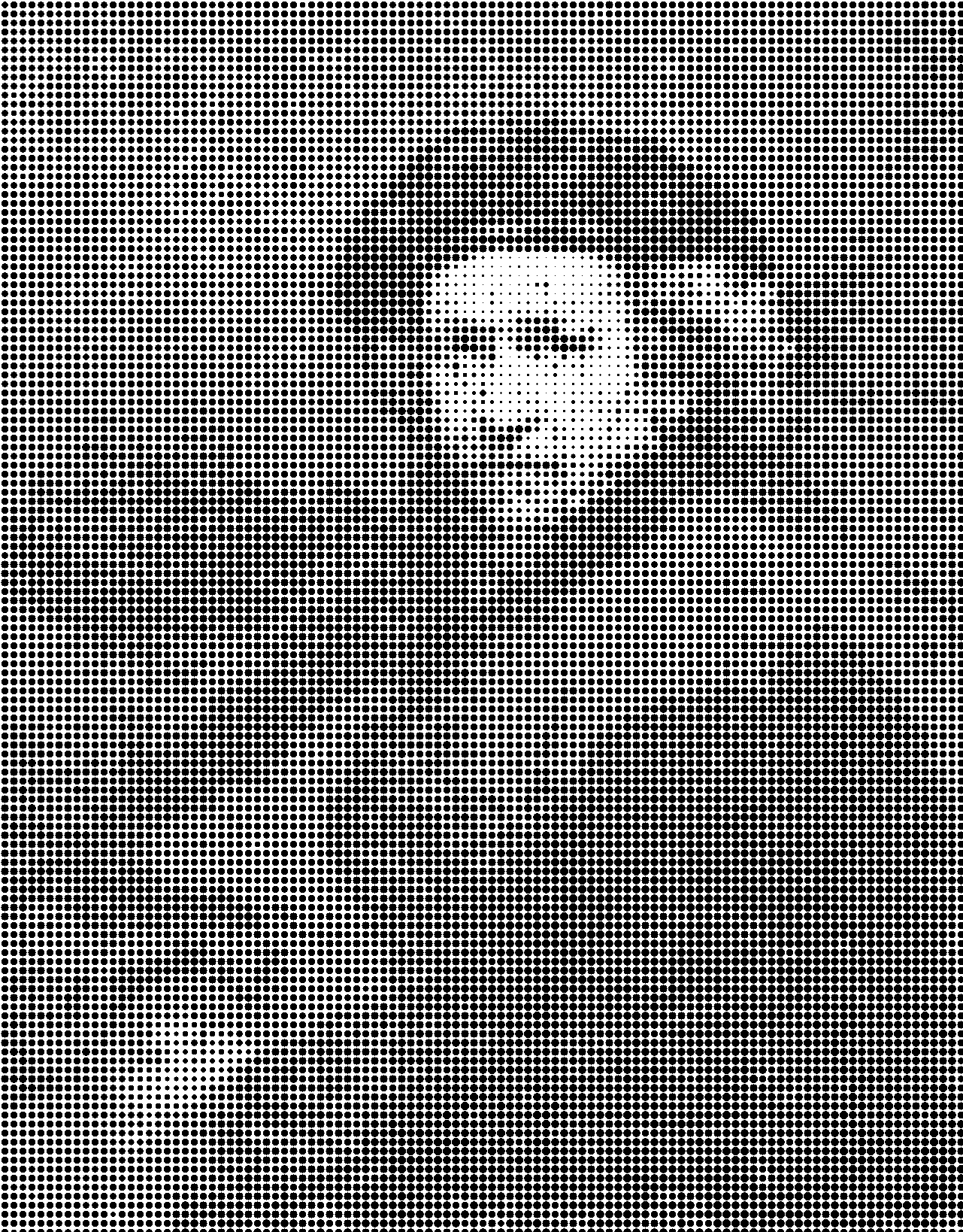
You will see that at very high contrast levels (8) we lose detail as everything blends together, and at low contrast levels (1) we lose detail in the clothing as there isn't enough contrast to distinguish the folds.
Selecting the Color
The last selection you can make with the halftone tool is the color. The interesting thing about the color is that you can use it to represent a flag, school, sports team, holiday or whatever else you can think of. Below are some themed versions of the image that we have so far.
Show Me the Code!
If you really want to know how this works, there is no better way than to look at the shader code. Here it is! You (or the AI assistant) can modify this within the BrushCue tool to make your own effects. Maybe do the same effect but with triangles instead of circles?
@group(0) @binding(1) var<uniform> background_color: vec4<f32>;
@group(0) @binding(2) var<uniform> foreground_color: vec4<f32>;
@group(0) @binding(3) var<uniform> pixel_size: i32;

fn do_transformation(input: vec4<f32>) -> vec4<f32> {
// @start_function
let pix_size = u32(pixel_size);
let block_corner = (position / pix_size) * pix_size;
let center_coord = block_corner + pix_size / 2u;
let result = textureLoad(input_texture, center_coord, 0);
let distance_from_center = length(vec2<f32>(position) - vec2<f32>(center_coord));
let max_radius = f32(pix_size / 2);
let lightness_scale = 1.0 - clamp(result.x, 0.0, 1.0);
let pixel_radius = max_radius * lightness_scale;
if (distance_from_center < pixel_radius) {
  return foreground_color;
} else {
  return background_color;
}
return vec4<f32>(0.0);
// @end_function
}