What a pixelate effect is
To understand what the pixelate effect is doing, first, a brief introduction to what a pixel is. You may think of a pixel as a little square LED on your display. For the purposes of image editing, that is not quite right. It is better to think of a pixel as an infinitesimal sample of color at a particular point — no area, just location.
With this distinction in mind, we need to trick the display into behaving like it is low-resolution.
An initial attempt, lowering the image resolution
Now that we know that pixels are just samples of an image at a given point, pixelating an image should be easy! We just scale it to reduce the number of samples. Wrong. Doing so produces the image below.

Reducing the size of the image does not account for how computers actually display images. When scaling up an image, your computer will merge nearby pixels in a process called anti-aliasing. While this makes scaling images up and down look better, it breaks our pixelation effect. Let's now try to trick the display.
The BrushCue approach
To build a pixelation effect, we need to work around the fact that computers will blend nearby pixels when they scale. To do this, we keep the image resolution the same but just use the same color in squares of a given size in the image.
In BrushCue, the shader for how we do this is:
@group(0) @binding(0) var input_texture: texture_2d<f32>;
@group(0) @binding(1) var<uniform> pixel_size: i32;

fn do_transformation(input: vec4<f32>, position: vec2<u32>) -> vec4<f32> {
let pix_size = u32(pixel_size);
let block_corner = (position / pix_size) * pix_size;
let center_coord = block_corner + pix_size / 2u;
let result = textureLoad(input_texture, center_coord, 0);
return result;
}
This code keeps the image the same size but creates squares of the same color. We take the size of a square, get the color at the center and use that color for each pixel.
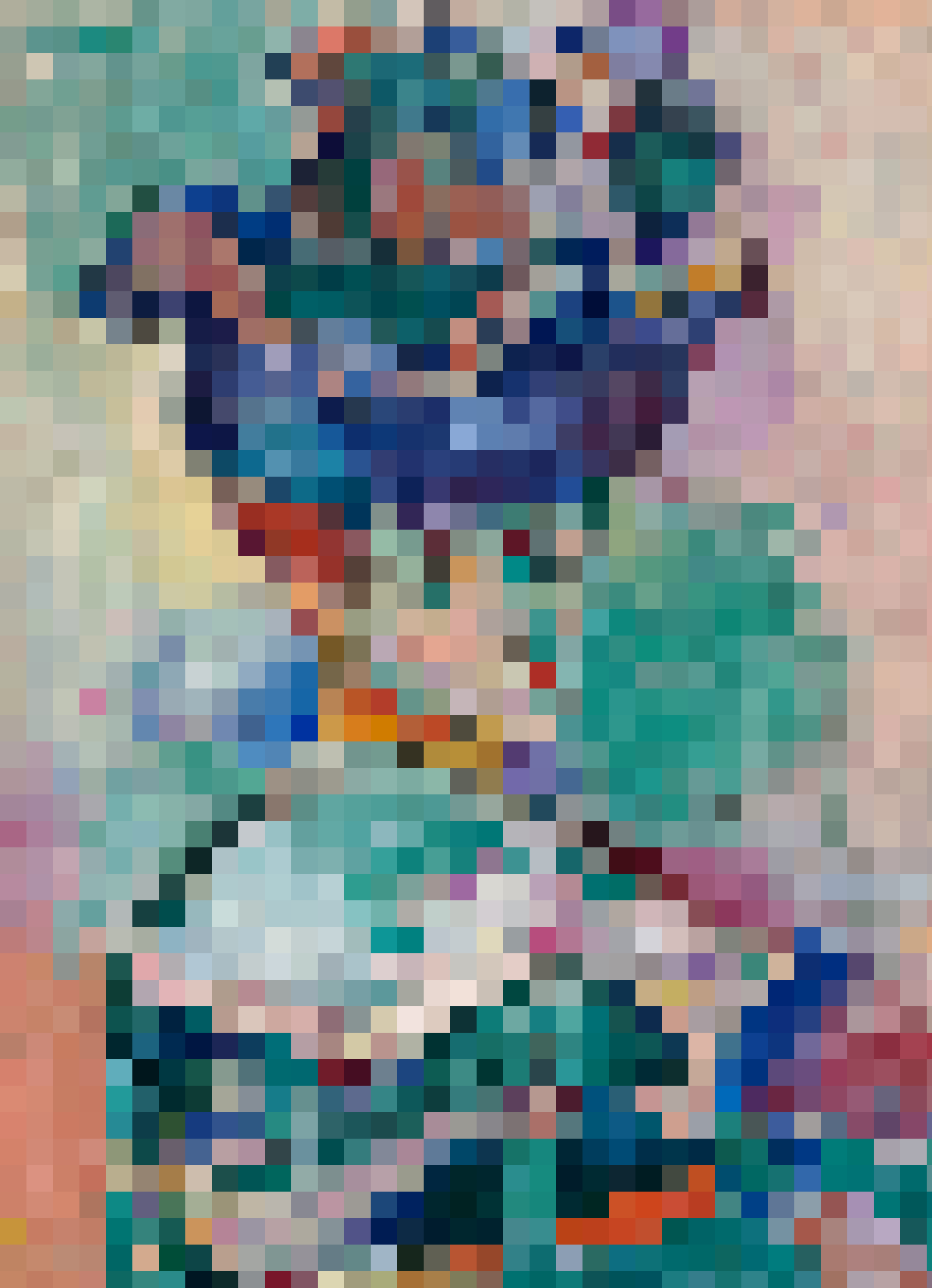
And now we have our result. A pixelated image that actually looks pixelated when displayed on your screen.