Digital blending is derived from how computer displays work. For this discussion, a basic understanding of how a computer display works is required.
Think of a computer display as a grid of little squares called pixels, each pixel consisting of three inner elements, a red one, a green one and a blue one. To show a color at one point on this screen, we turn on the red, green or blue elements at different levels, all on to make white, just the blue one on to make blue, red and blue on together to make magenta and so on.
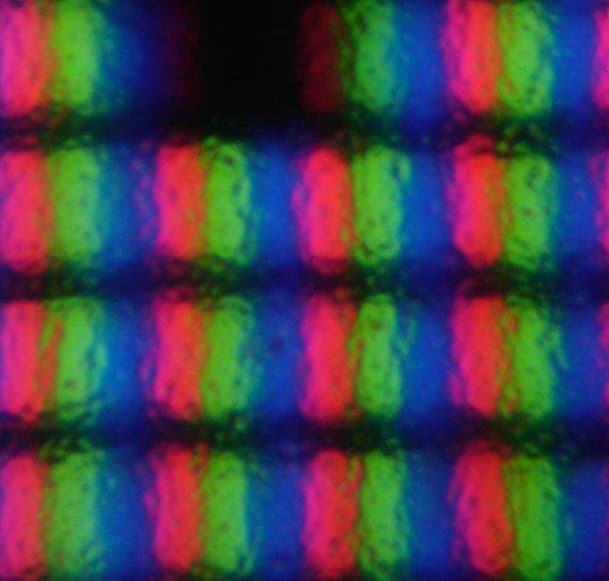
You may ask: Wait, red and blue make magenta? In kindergarten I learned that red and blue make purple. Did things change?
Mixing colors on a computer display is different from mixing paint, similar, yet crucially different. Paint absorbs light; what you see is the reflection of what is not absorbed. A computer display emits light directly to your eye. Reflection vs direct emission explains the difference. If we turn on red and blue lightbulbs next to each other we get a lighter magenta color. If we mix red and blue paint we get a darker purple color. Both colors are similar in hue, but different in brightness.
The mental tools to visualize blends are ready, let's begin our discussion with BrushCue's mathematical blends: add, subtract, max, minimum and multiply. The following animations demonstrate these blend modes with an intersection of 8 colors. In order from top to bottom, the lines have the following colors:
| Color | Red | Green | Blue |
|---|---|---|---|
| White | 1 | 1 | 1 |
| Black | 0 | 0 | 0 |
| Red | 1 | 0 | 0 |
| Green | 0 | 1 | 0 |
| Blue | 0 | 0 | 1 |
| Yellow | 1 | 1 | 0 |
| Magenta | 1 | 0 | 1 |
| Cyan | 0 | 1 | 1 |
Blend Add
Blending with add means that each of the components adds to each other individually. The red values for each color are added, the blue values are added together, and so are the green values. For example:
- Red (1, 0, 0) + Green (0, 1, 0) = Yellow (1, 1, 0)
- Red (1, 0, 0) + Blue (0, 0, 1) = Magenta (1, 0, 1)
- Magenta (1, 0, 1) + Green (0, 1, 0) = White (1, 1, 1)
What happens when we go over 1? For example White (1, 1, 1) + Magenta (1, 0, 1), this would give a color at (2, 1, 2). When we get a value greater than 1, we clip to 1.
Blend Subtract
The subtract blend mode means that each component is subtracted from each other. We subtract the red foreground value from the red background value and do the same for the rest of the components.
- Green (0, 1, 0) - White (1, 1, 1) = Black (0, 0, 0)
- Green (0, 1, 0) - Black (0, 0, 0) = Green (0, 1, 1)
- Green (0, 1, 0) - Yellow (1, 1, 0) = Red (1, 0, 0)
Similar to add, if we get a value less than 0, we clip to 0.
Blend Maximum
For max, we take the maximum value for each component.
- Green(0, 1, 0)
maxRed (1, 0, 0) = Yellow (1, 1, 0) - Magenta (1, 0, 1)
maxCyan (0, 1, 1) = White (1, 1, 1) - Black (0, 0, 0)
maxCyan (0, 1, 1) = Cyan (0, 1, 1)
Blend Minimum
For minimum, we take the minimum value for each component.
- Green(0, 1, 0)
minRed (1, 0, 0) = Black (0, 0, 0) - White (1, 1, 1)
minCyan (0, 1, 1) = Cyan (0, 1, 1) - Magenta (1, 0, 1)
minCyan (0, 1, 1) = Blue (0, 0, 1)
Blend Multiply
You get the pattern by now. For multiply, we multiply each component by each other. Of the blend modes we have discussed thus far, multiply is the most useful. Add and subtract are susceptible to being clipped to 0 and 1. Multiply does not suffer the same affliction. You will find that multiply is useful when you want to etch something into your images.
- Green (0, 1, 0) * Blue (0, 0, 1) = Black (0, 0, 0)
- Red (1, 0, 0) * White (1, 1, 1) = Red (1, 0, 0)
- Cyan (0, 1, 1) * Yellow (1, 1, 0) = Green (0, 1, 0)
Add, Subtract, Multiply, Minimum and Max are specialty blend types. More often, you want to just put one thing on top of another. To do this, we need an instruction that determines how much to blend one image with another. The venerable computer graphics concept of alpha comes to the rescue. Invented by Ed Catmull and Alvy Ray Smith in the 1970s, the alpha component is how we define the proportion that two images blend together.
Blend Alpha
In the foreground of this animation we have our colors from earlier, now with alpha 0 on the left side of the image and a gradient to alpha 1 on the right side. In the background, we have the example image I like to use, Claude Monet's Women with a Parasol, this image has a uniform alpha of 1. The alpha causes the foreground colors to blend through in different amounts. For alpha of 0 on the left-hand side, we see the underlying painting completely. For alpha of 1 on the right-hand side, we see the color completely.
Alpha is not relegated to just CompositionBlendAlpha. You can use it in other blend modes as well. To elucidate this, the formula that is used in BrushCue for alpha blending is shown below as WGSL code.
fn composite_blend_add(foreground_rgba: vec4<f32>, background_rgba: vec4<f32>) -> vec4<f32> {
    let foreground_alpha = foreground_rgba.a;
    let background_alpha = background_rgba.a;

    // this line changes per blend type. This demonstrates blend add.
    let blended_rgb = foreground_rgba.rgb + background_rgba.rgb;

    let out_alpha = foreground_alpha + background_alpha * (1.0 - foreground_alpha);

    // Porter-Duff source-over with blend applied in the overlapping region.
    let out_rgb_premult =
        foreground_rgba.rgb * foreground_alpha * (1.0 - background_alpha) +
        background_rgba.rgb * background_alpha * (1.0 - foreground_alpha) +
        blended_rgb * foreground_alpha * background_alpha;

    return vec4<f32>(out_rgb_premult / out_alpha, out_alpha);
}
We have examined CompositionBlendAlpha, CompositionBlendAdd, CompositionBlendSubtract, CompositionBlendMax, CompositionBlendMin and CompositionBlendMultiply. These cover the standard blends, all behave the same with alpha but differ in their RGB operation. Besides these, we have specialty blend modes in BrushCue. One is the CompositionBlendStencil operation. This takes just the alpha of the foreground and applies it to the background. The below example shows how this works for a CompositionSegment mask.
Blend Stencil
The CompositionBlendStencil punches out the background; in this example, sliding to extract the umbrella. To see CompositionBlendStencil in action, you can use our cut out tools for people, cats or dogs.
This completes our discussion on blending. If you have questions or feedback, please let us know at feedback@brushcue.com. The blend modes available in BrushCue will expand over time and your feedback helps determine which to add first. We are considering adding all the blend modes you see in Procreate, Photoshop, and similar apps. We are also considering allowing creators to write their own blend modes in WGSL code similar to how CompositionCustomTransformerShader works.