Subtracting two numbers is also called taking the difference. The same principle applies for images; subtracting two images calculates the difference between them. I've prepared a test for you: there is one circle on the right image that is not on the left. Find it.


After subtracting the right image from the left, only pixels of the same color become black. Non-black colors mean there is a difference. There is a caveat to this; as you can see in the subtract blend table, channels are clipped to 0 when a negative value is produced. That is why the top chunk of the circle in this image is black when there is actually a difference.

To find the circle, we are not interested in the colors themselves, just the magnitude of the change. Negative values show that there is some difference, and we want to preserve that instead of clipping that value to 0. Clipping to 0 and 1 is required to display to the screen or write to a file. Before that, we are free to use out-of-range values. To avoid the clipping, we apply an absolute value operation to the image which makes negative values positive.

We don't care about the colors themselves or the magnitude of the change, we only care if the pixel is different or not. To extract that information we can use a threshold on the lightness component of the color. Values below the threshold become black, values above the threshold become white. After doing this, we have an image that is two colors, black and white. The white part corresponds to the added circle.

Now we have a mask describing exactly where the new ball is. With that mask, we apply a stencil blend (which we will see in a future post) to make the circle pop in the original. Using a blend subtract, we have identified the added circle.1

Using a blend subtract to find the difference between two images is a common technique in video processing. Between frames of a video, subtracting the frames from each other will identify movement. This enables movement-based artistic effects and the identification of moving objects in computer vision tasks.
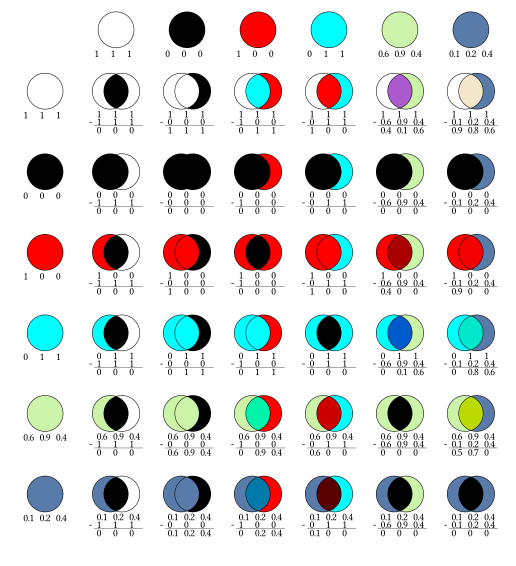
This figure illustrates the subtract blend mode against the color set. To perform a blend subtract, you subtract each of the channels against the same channel from the other color: red from red, green from green, and blue from blue. Because we display the subtract result directly to the screen, negative values are clipped to 0. In the circle-finding example above, we took the absolute value to avoid this.
Subtracting white from any color makes it black (the first column) and subtracting black from any color leaves it unchanged (the second column). Notice also how subtracting red from any color removes that channel from the resulting color (the third column).
1. The code to generate the examples in this section can be viewed at www.brushcue.com/docs/py/examples/book/blend/blend-subtract-example.