
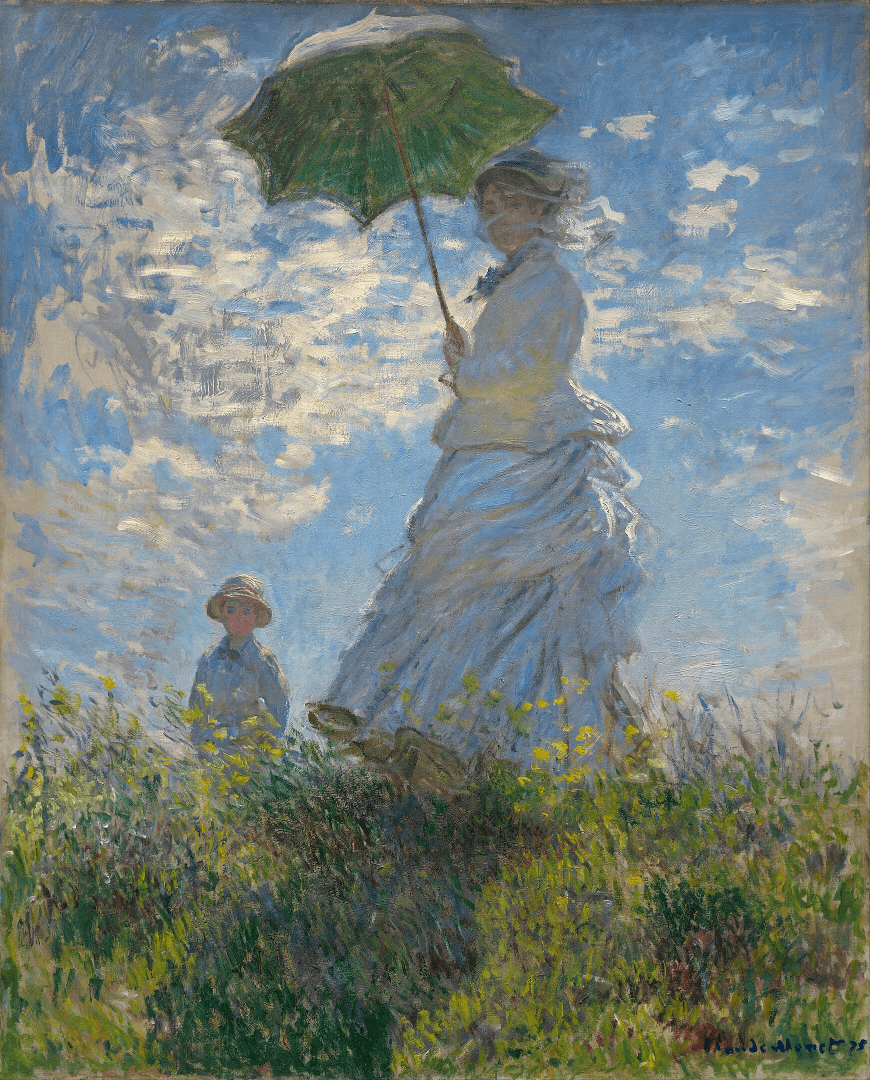
In this post, we will examine how the contrast adjustment works within BrushCue. To do this, let's try to increase and decrease the contrast on Monet's Women with a Parasol.
Let's Define Contrast
Contrast means how far apart all of the colors are on average. To illustrate, let's take this concept to the extreme.
| Minimum Contrast | Maximum Contrast |
|---|---|
 | 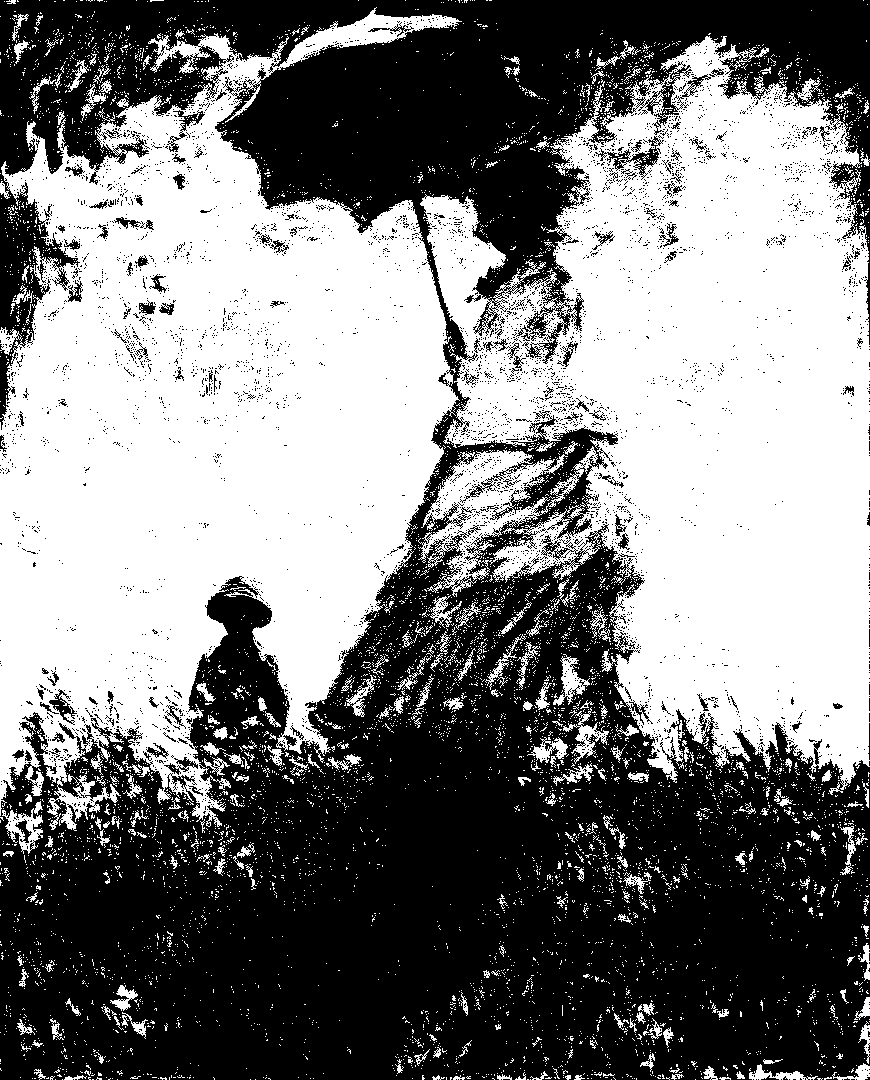 |
The minimum possible contrast is all the same color. The maximum possible contrast is when every pixel is either black or white — thereby maximizing the difference between all the pixels.
We want something in the middle for our effect. We can either push the colors together to reduce contrast or push them apart to increase contrast.
Curves to Modify Contrast
To do this in BrushCue we use the concept of a pivoted sigmoid function. The technical details of this are not important for our discussion here. But here is what the functions look like.
To Increase Contrast
The x value here corresponds to the input value. The y value corresponds to the output value. If you hover over the curve you will notice that each value of x less than 0.5 gets pushed toward 0, and any value greater than 0.5 gets pushed toward 1. This mathematical curve is how we increase contrast.
To Decrease Contrast
The inverse happens with the curve to decrease contrast. For any x value the corresponding y value is pushed toward 0.5.
Putting it all together
We now have an understanding of what a contrast adjustment is. We also have a mathematical mechanism for how to do it. With the additional knowledge that the R, G, and B correspond to intensities of light, we can now perform a contrast adjustment.
To do this, we apply the curves above to the R, G, and B components. The animation below demonstrates how this works for values ranging from -10 to positive 10 for the slope.